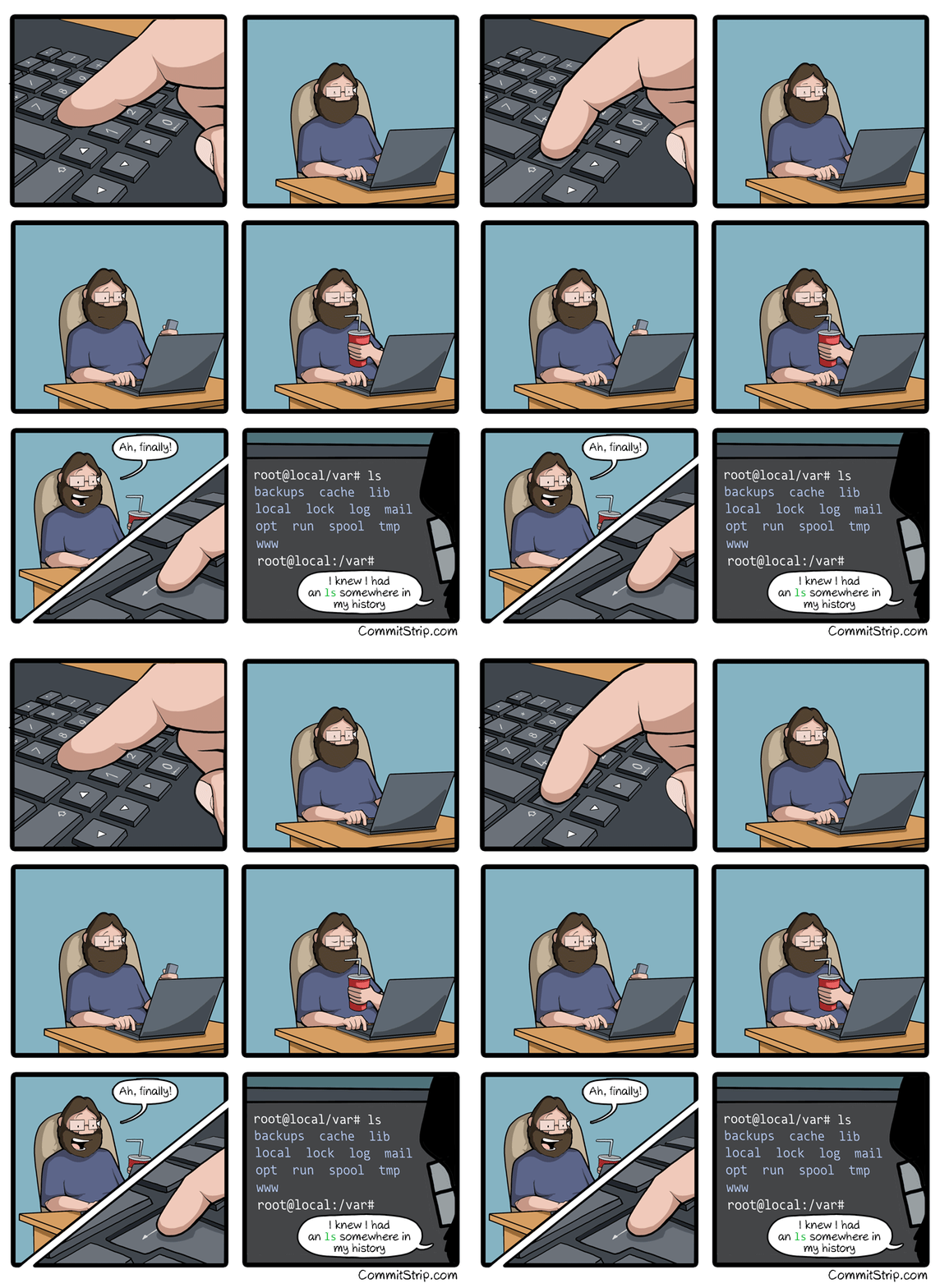
Ctrl+R
What the fuck!? How am I only learning this now, after years of linux as daily driver?!
Shit is usually a pain in the ass. The challenge is divining how much of a pain in the ass something has to be that someone else might have made a solution for it.
I didn’t know you could ctrl+shift+c to copy in the terminal until a month ago when my linux n00b wife said "there has to be a better way to do this. I’ve been right clicking to copy for 10 years.
most DE’s have a thing where you can paste highlighted text using the middle mouse button
Middle mouse button?!
Most mouse wheels can be clicked in place of the middle button, which has been removed from most modern computer mouses.
It’s also independent from the Clipboard so you can do it while keeping your clipboard
I think that’s just an x11 thing that might have been carried over to Wayland or at least works on Hyprland.
I believe plasma also has it
And ctrl + shift + v to paste, just in case
If that doesn’t work, Shift + Insert.
you can also just use ctrl + insert for copy and shift + insert for paste.
MinGW can do that, too. Useful for Git.
Ctrl+c to copy, Ctrl+v to paste, Ctrl+z to undo last change (chain it multiple times to reverse time) hopes this helps, ctrl+tab also changes applications on macos and Linux to my knowledge. If you know anymore let’s put them together
You’re getting downvotes because Ctrl+C doesn’t work in the terminal. That sends the kill command to the currently running application. You need the shift to tell the terminal program that you’re trying to copy.
I use cmd+c cmd+v in my terminal all they time, I do get ctlr+c is the shutdown command. I use a it frequently. I honestly had no clue I was being down voted but I don’t care
I don’t have a command key. I don’t use a mac.
Congratulations! I remember where I was when I first learned it (in a noisy server room at the back of a machine shop).
Now pair it with FZF for fuzzy finding – it’s surprisingly easy to set up, just following any guide. It’s insanely useful. I find myself even doing things like typing:
$ xinput --disable $(xinput --list | grep -i touchpad | grep 'id=[0-9]\+' -o | cut -d= -f2) # Disable synaptic touchpad trackpad pointercommands with these like comments on the ends as sort of “tags” so I can ctrl+r search for them later. Yes, I know I could just use a named function, but this is like the step just before that–before I know if I’ll be issuing the same command all the time, or just for the next couple weeks. (This one was from when I was resting my notebook on my laptop.)
I like this; I have a lot of commands that I don’t use often enough to justify an alias, but still need to rerun all the time. thanks!
As usual, that’s documented (we can RTFM).
Before trying ctrl-s, you may want to disable software flow control: run
stty -ixon& add it to your initialization files. Otherwise, you’ll pause terminal output. ctrl-q resumes terminal output.sttyreveals terminal special characters$ stty -a ⁝ intr = ^C; quit = ^\; erase = ^?; kill = ^U; eof = ^D; eol = <undef>; eol2 = <undef>; swtch = <undef>; start = ^Q; stop = ^S; susp = ^Z; rprnt = ^R; werase = ^W; lnext = ^V; discard = ^O; … ⁝These special characters/keys often perform special functions. To illustrate
- ctrl-d on empty input typically exits/logs out of interactive terminal applications (including shells)
- ctrl-u discards input (useful for inputs like password prompts that don’t echo input back)
- ctrl-v inputs next character literally (such as tab)
Just checking, because I learnt to type before I worked this out, and because surely someone reading doesn’t know: press tab. Bash will fill in file names from your current directory.
E.g. say you have files fred1file, fred2file, jim.
Type f then press tab, it will fill to “fred”. Then press 2 and press tab again and it will fill the full “fred2file”.
Have a play, it works in heaps of situations.
Bash will also do autocomplete for cli programs that have autocomplete functionality. Try typing:
git r<tab><tab>you’ll see options for all the git commands that start with r. Often cli commands will have autocompletion for long (double dash) options.
If you want to see all the commands that have auto complete available, look in:
/usr/share/bash-completion/completions/
There’s a few other locations they can live, notably:
/etc/bash_completion.d/ ~/.bash_completion ~/.local/share/bash-completion/completions/
I don’t know if there are more or if there is any variation per distro.
You can also write your own bash completions. They can get pretty smart and context sensitive.
Pretty good beginning tutorial:
https://iridakos.com/programming/2018/03/01/bash-programmable-completion-tutorial
edit - I should’ve mentioned that this isn’t native to bash, it requires installation of bash-completion. But bash-completion is installed by default in many distros.
Yeah already use this all the time, had to set it up on arch to work with sudo tho.
Same.
I’m not going to say how long I used linux before learning this. It isn’t “this many days old”, but it may as well be.
I have 7 headless linux boxes running.
Wait till you learn about
!?.^r is superior, though.
Hey! I’ve seen you before! You’re the unhinged jackass noticer!
…i looked in your comment history for too long to figure out why though. https://lemmy.world/comment/18001123
This but with FZF and
aghttps://atuin.sh/ Does all that and a lot more, like showing if the command succeeded and which directory it was run in
Even quicker with zsh or atuin: write the first few letters then arrow up to cycle through all matches
Even quicker with fish: Write the first few letters then it auto-suggests the last-run command matching that prefix (and then you can still arrow up to cycle through all matches).
(There is also a zsh plugin for that, called zsh-autosuggestions.)
I main ZSH and I’ve been CTRL+R’ing for years damn here I am a fool
Glad to be of service
Fish shell has this feature too. Love it.
This is what I love about Linux - always learning new things!
I like to imagine someone added it in for their own personal use and told nobody because surely they are the only one.
I’m shocked how far I had to scroll down before it was mentioned, I was getting scared I would have to say it lol
I love this one but is the gif moving at 0.5 frames a second or is it just me
For me, it looks normal (about 8 frames a second, probably).

Normal for me. Thanks for pointing out it was a gif. I never realize they’re gifs because I have to “open in external” for them to actually move.
It works fine for me if I click on it but the embedded one is stuttering.
I used to be like this but people seriously. CTRL+R
Do it. Don’t make this one of those things you’ve heard about and just never got around to trying. Open your terminal right now and CTRL+R and type any part of the command you did before. If the command you want is not showing first just hit CTRL+R again to go to the next one back.
DO IT.
Edit: I did learn from this thread today though that ZSH has it set to where you can just type part of what you’re looking for then hit up to do the same thing. Neat!
WHAT THE FUCJ IS THIS SORCERY BRO I’VE BEEN USING LINUX FOR AGES AND NEVER KNEW THIS BROOOOOOOOOO
You can empower Ctrl+r event more by using fzf. After I started using it, I can’t imagine going back to without it.
Holy shit. I just tried it.
ctrl+ris a revelation! How the fuck did I not know about this?If you want to level up ctrl-r, upgrade to Atuin: https://atuin.sh/
Edit: I did learn from this thread today though that ZSH has it set to where you can just type part of what you’re looking for then hit up to do the same thing. Neat!
Fish too, it’s fantastic.
CTRL+R + FZF is the goat. You just need to vaguely remember the command and you’ll find it.
This changed my life when I discovered it. Also using
agas alternative to ack.FZF Vim plugin is also gold!
What, and type ‘ls’ again?
Ctrl + R and start typing the command, it’ll come up, press enter. Im just more lazy because I know there are still faster ways.
Edit: instead of hitting enter, keep pressing ctrl + R to cycle through history commands that contain what you typed in
Oh my freaking god thank you
Note: if the above isn’t working, you may need to first set your shell to accept emacs commands:
set -o emacs
Pretty much, yeah.
Rather than jot down in a text file the various
ffmpegcommands I use frequently…Raktajino@laptop:~/Downloads$ history | grep ffmpeg 12 sudo apt install audacity gimp ffmpeg mplayer 184 history | grep ffmpeg 215 ffmpeg -i source.mkv -ss 629 -t 7 out.mkv 217 ffmpeg -i out.mkv -s 0.5 -vf scale=1280:720 out.mp4 218 ffmpeg -i out.mkv -ss 0.5 -vf scale=1280:720 out.mp4 231 ffmpeg -i out.mp4 -vf "subtitles=out.srt" final.mp4 503 ffmpeg -i toofat.wav toofat.mp3 ... 682 history | grep ffmpeg 684 ffmpeg -i 1.gif -i 2.gif -filter_complex "[1:0] [2:0] concat=n=2" out.gif 685 ffmpeg -i 1.gif -i 2.gif -filter_complex "[1:0] [2:0] concat=n=2:v=1" out.gif 686 ffmpeg -i 1.gif -i 2.gif -filter_complex "[1:0] [2:0] concat=n=2:v=1" -map '[v]' out.gif 687 history | grep ffmpeg 688 ffmpeg -i 1.gif -i 2.gif -filter_complex "[0:0] 12:0] concat=n=2:v=1" -map '[v]' out.gif 689 ffmpeg -i 1.gif -i 2.gif -filter_complex "[0:0] 1:0] concat=n=2:v=1" -map '[v]' out.gif 690 ffmpeg -i 1.gif -i 2.gif -filter_complex "[0:0] [1:0] concat=n=2:v=1" -map '[v]' out.gif 691 ffmpeg -i 1.gif -i 2.gif -filter_complex "[0:0] [1:0] concat=n=2" out.gif 694 history | grep ffmpegI like how ‘history | grep ffmpeg’ shows up twice
I like how I was courageous enough to not fix the actual typos/failed commands in the actual history lol.
4 times
wao
I’m begging you to use CTRL+R
If you have a fzf or other plugin installed, great. the vanilla Ctrl R is kinda mid in most shells IMO
It’s still lighyears ahead of hitting up forty times.
exactly, which is why
history | grepcan, in some cases, be better than vanilla Ctrl + R
You can also create aliases for frequently used commands. You can even put a function in an alias so it can accept arguments, but it would probably be better to just write a shell script at that point.
More like ⬆️⬆️⬆️⬆️⬆️⬆️ mother fucker ⬇️
⬆️⬆️⬆️⬆️⬆️⬆️⬆️⬆️⬆️⬆️
CTL+C
history
history | less
⬆️⬆️⬆️
Pg-up
…
Pg-up
…
q
! 2648
I just mapped page-up to search (and you can too)
But, why? Ctrl-R is right there.
history | grep ‘part of the command I remember’Ha… That as if I would ever remember the part of the tool instead of the fact what it did 🤣
Also: Ctrl+r then type the part of the command you remember.
Everytime I use ffmpeg…
history | grep [the thing]
CTRL+R [the thing]
please i beg you
with grep I see all the alternatives, Ctl+R just shows me one
Combine ctrl+R with fzf and get the best of both worlds
For me
ctrl-ris faster most of the time,history | grep [command]is better if I can’t easily pattern match (don’t remember it exactly, using several flag variations, etc.). they’re both good tools.
Ppsshh. Not lazy enough. Create that in a script and call it “hgrep” and drop it into path.
Brilliant
Why not just use an alias?
That’s the right way, yes.
i was doing
cat ~/.bash_history | grep thingwhich is stupid so i started doinggrep "thing" ~/.bash_historynow you’re telling me i should do
history | grep thingi can’t win
Some would call the former command cat abuse.
In short, unless you want the contents of a file printed to stdout (or multiple files concatenated), the command can probably be written without
cat, instead using the filename as an argument (grep pattern file) or IO redirection (cmd < file).Stylistics and readability are another thing though.
Some would call the former command cat abuse.
it 100% is, its just a bad habit of mine
Exactly! Now copy paste it into Joplin where you’ll never see it ever again.
history | grep then !cmd_number
Fuck that hits so hard.
Care to explain to an uninitiated?
Every time you hit the up arrow, it shows the previous command you used in the terminal.
So hitting the arrow once gives your last used, hitting it twice gives your second to last command, and so on.
Yup and that is me. I could just history grep the command I want but I SWEAR it was just 2 commands ago, or 15 up arrows. lol.
Ohhh! I can absolutely relate to this as well! Using a zmud client to play games on. which is probably not much different, looking, than a terminal anyways
Multi user dungeon? What do you play?
Did. It’s long gone
Was a modified circlemud. Mostly fantasy. Was a mish mash of popular fantasy worlds. Feist, Tolkien, various DnD settings, letter on they tried to go away from fandom content.
Had any 29 classes, could “remort” keeping 15% of your skills. And had other benefits such as lowering some level requirements here and there.
Was riftsmud.net:4000 originally but they ended up having to move a could times.
About 40 players at peak times, maybe 100 players altogether that played any amount
history | grep thethingyou'relookingfordeleted by creator
just use
atuin.ese lo tengo, es muy bueno
Atuin is so good, especially with multiple machines. I just would love more comp. time options to disable the dot dotfiles feature etc.
zsh-history-substring-search
I lazily type part of the thing I want like “sys” and then ctrl+⬆️/⬇️ and
sudo systemctl start libvirtdetc. appear like magic.